
How to order glasses online
Pick a frame, build your lenses, enter your prescription, and check out — nine simple steps, walked through with real screenshots from our store.
From frame to checkout
Pick your frame
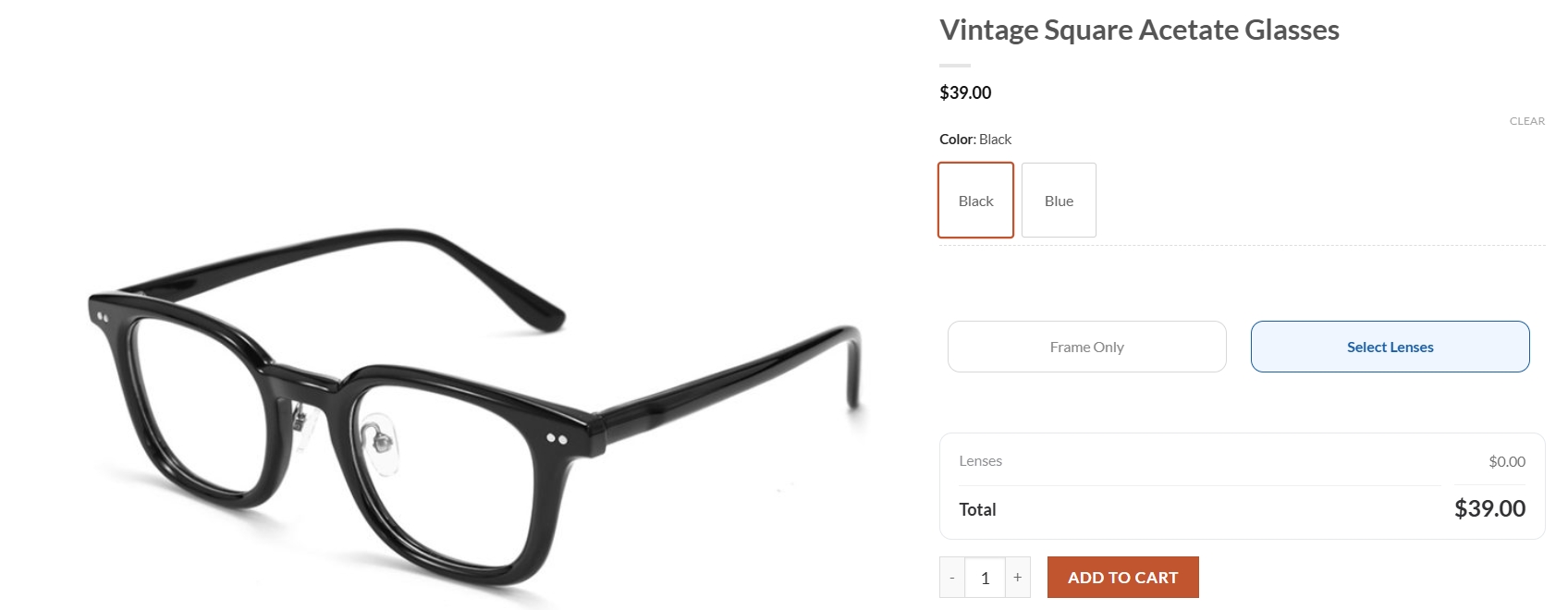
Browse the collection and open a frame you love. Choose its color, then tap Select Lenses to add a prescription — or Frame Only if you just want the frame.
Open the lens builder
Click Select Lenses. The lens configurator opens right on the product page, ready for you to build your lenses step by step.
Choose your prescription type
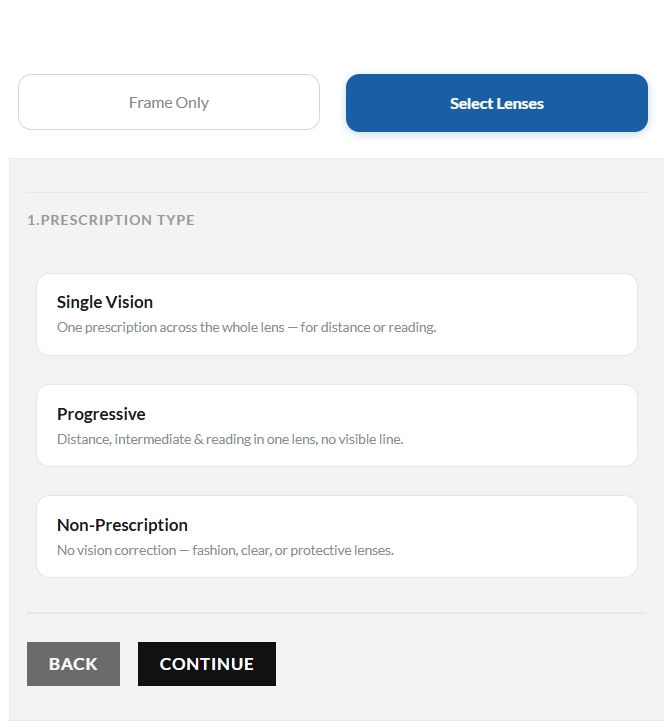
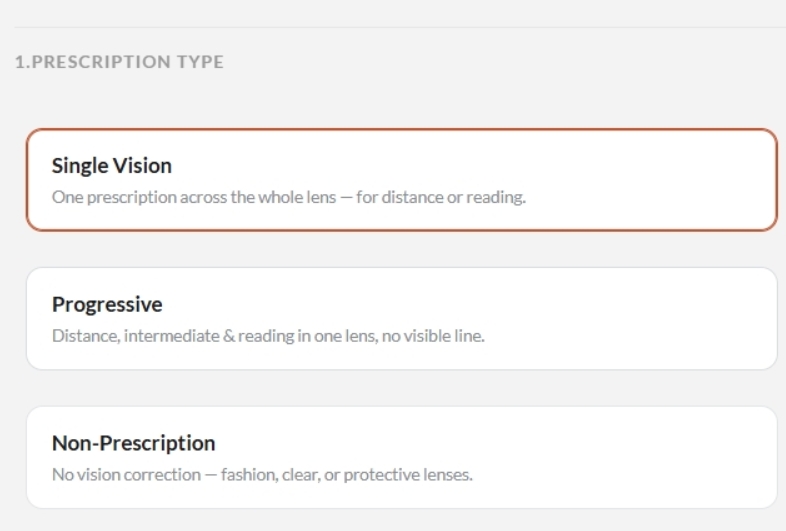
Single Vision for one correction, Progressive for distance-to-reading in one lens, or Non-Prescription for fashion and protective lenses. Select one and continue.
Choose a lens function
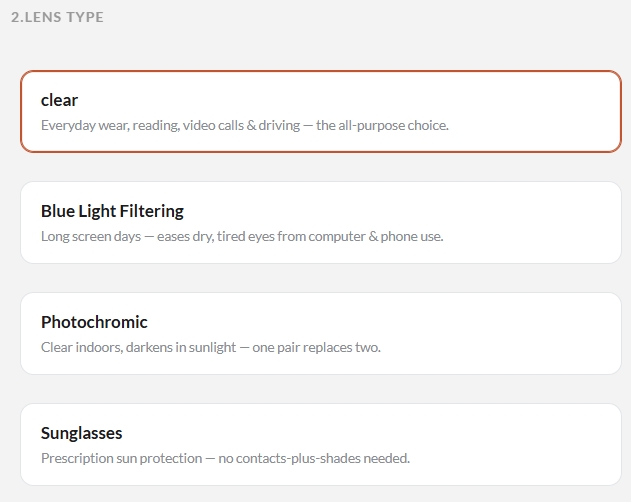
Clear for all-purpose everyday wear, Blue Light Filtering for long screen days, Photochromic to darken in sunlight, or Sunglasses for prescription sun protection.
Choose your lens package
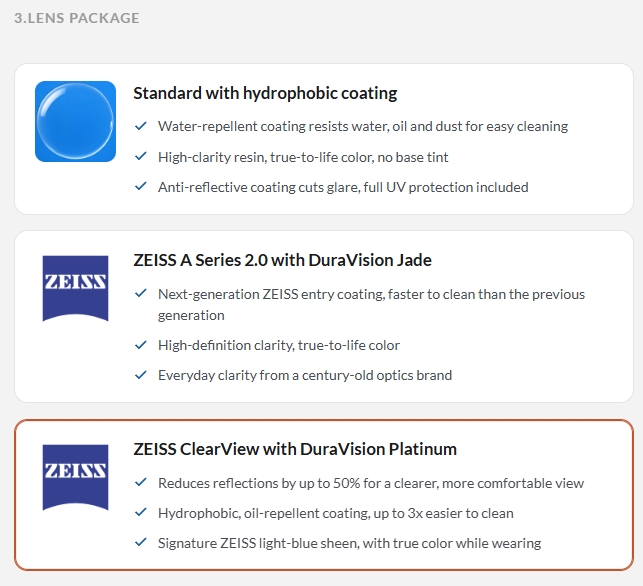
Compare the available lens packages. Each card lists its coating quality and everyday benefits, so you can pick the one that fits your needs and budget.
Choose your lens index
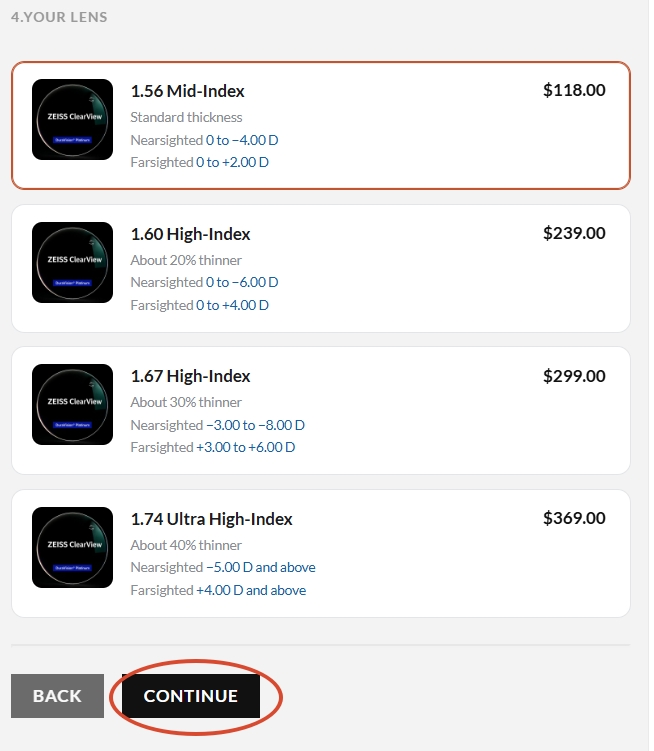
From 1.56 (standard thickness) up to 1.74 (about 40% thinner). Each card shows the nearsighted and farsighted range it fits — match it to your prescription strength, then Continue.
Enter your prescription
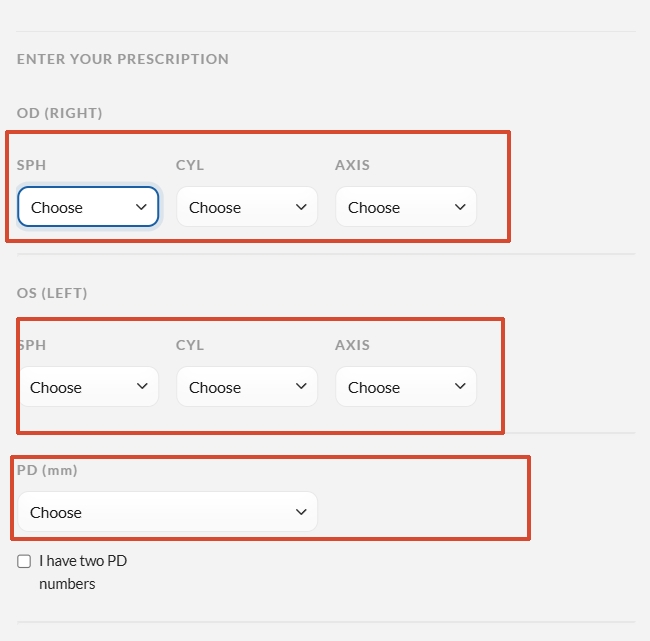
Fill in SPH, CYL, and AXIS for each eye (OD = right, OS = left), plus your PD in millimeters. Copy the numbers straight from your prescription card.
Add to cart
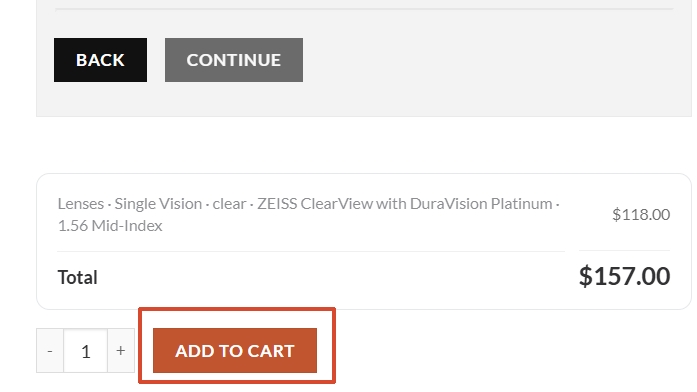
Review your lens summary — type, function, package, and index — and the combined total. When it looks right, click Add to Cart.
Proceed to checkout
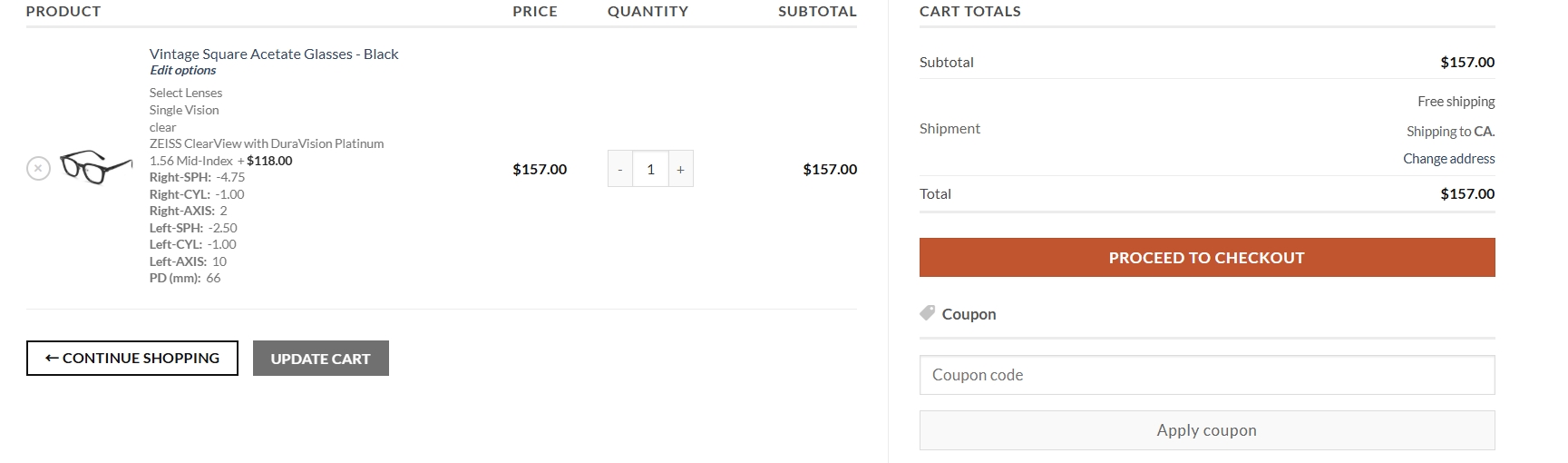
Open your cart to confirm the frame, lens details, and totals. Apply a coupon if you have one, then click Proceed to Checkout to finish your order.
Ready to find your pair?
Start with a frame you love — you can always add lenses during checkout, or come back to this guide anytime.